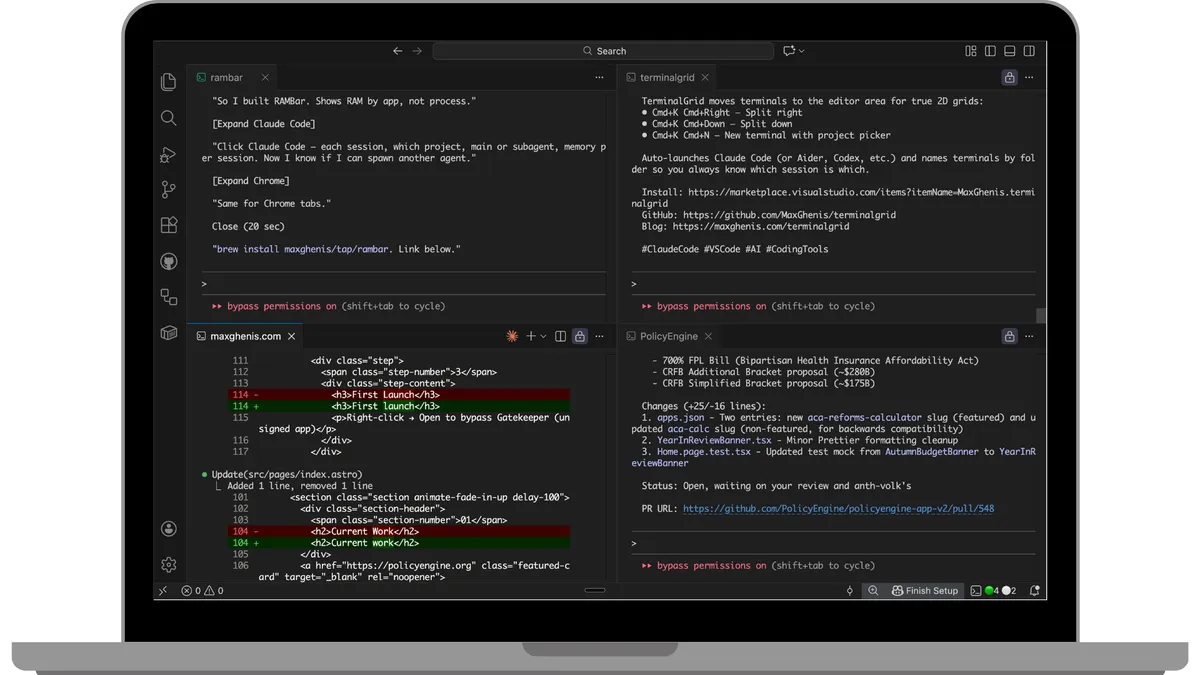
TerminalGrid: Turn VS Code into a Claude Code superterminal
A VS Code extension for keyboard-driven terminal grid management with project picker and auto-launch for AI coding tools.
Visit project →I run multiple Claude Code sessions simultaneously—one for each project I’m working on. VS Code’s terminal panel only splits in one direction—no 2D grids. And the native terminal has issues with image pasting that matter when you’re sharing screenshots with Claude.
So I built TerminalGrid—my first VS Code extension, built 100% with Claude Code.
VS Code as a shell for coding agents
Boris Cherny, who created Claude Code, recently shared that 100% of his contributions to Claude Code in the past month were written by Claude Code itself. I’ve been operating this way for two to three months now—not writing any code myself. Of course, Boris is a much better programmer than I am, so I had less to discard.
This shift has changed how I use VS Code. I’ve stopped looking at the code directly; VS Code is now just a shell for coding agents. I don’t use the file explorer or most other features. It’s still better than a raw terminal since it lets you paste screenshots, but otherwise I just keep it as a grid of Claude Code sessions.
The problem
VS Code’s integrated terminal only splits in one direction at a time—side-by-side when the panel is at the bottom, or stacked when it’s on the side. No 2D grids. This has been requested since 2018 (#56112, #160501) and people are still asking in 2025 (#254638, #252458).
Other extensions like Split Terminal and Workspace Layout don’t solve this—they work within the terminal panel’s limitations.
When you’re running 4+ AI coding sessions, you need a proper grid:
┌─────────────────┬─────────────────┐
│  policyengine   │  api-server     │
│  (Claude Code)  │  (Claude Code)  │
├─────────────────┼─────────────────┤
│  docs           │  frontend       │
│  (Claude Code)  │  (Claude Code)  │
└─────────────────┴─────────────────┘
The solution
TerminalGrid moves terminals to the editor area, where VS Code already supports full grid layouts. Then it adds keyboard shortcuts and a project picker:
Cmd+K Cmd+N— Opens a searchable list of your projects- Pick a project — Type to filter, select with Enter
- Terminal launches — Runs
cd <project> && claudeautomatically
The terminal is named after the folder, so you always know which Claude is working on what.
Setup
{
  "terminalgrid.projectDirectories": ["~/projects", "~/code"],
  "terminalgrid.autoLaunchCommand": "claude"
}
That’s it. Now every Cmd+K Cmd+Down/Right/N gives you a project picker that launches Claude in the right directory.
Other features
- Crash recovery — Terminal directories persist even if VS Code crashes
- Image pasting — Editor-area terminals handle screenshots better than the terminal panel
- Works with any CLI tool — Aider, Codex, Gemini CLI, or just plain shells
Get it
Install from the VS Code Marketplace or:
code --install-extension MaxGhenis.terminalgridProject page ・ VS Code Marketplace ・ GitHub
Day 1 of 12 Days of Shipping. Merry Christmas!